- compression
How to shrink a PDF that's too big to email
Most email providers cap attachments at 25 MB. Here are five fixes for an oversized PDF, ordered by what to try first. What works, what doesn't, and which myths to skip.
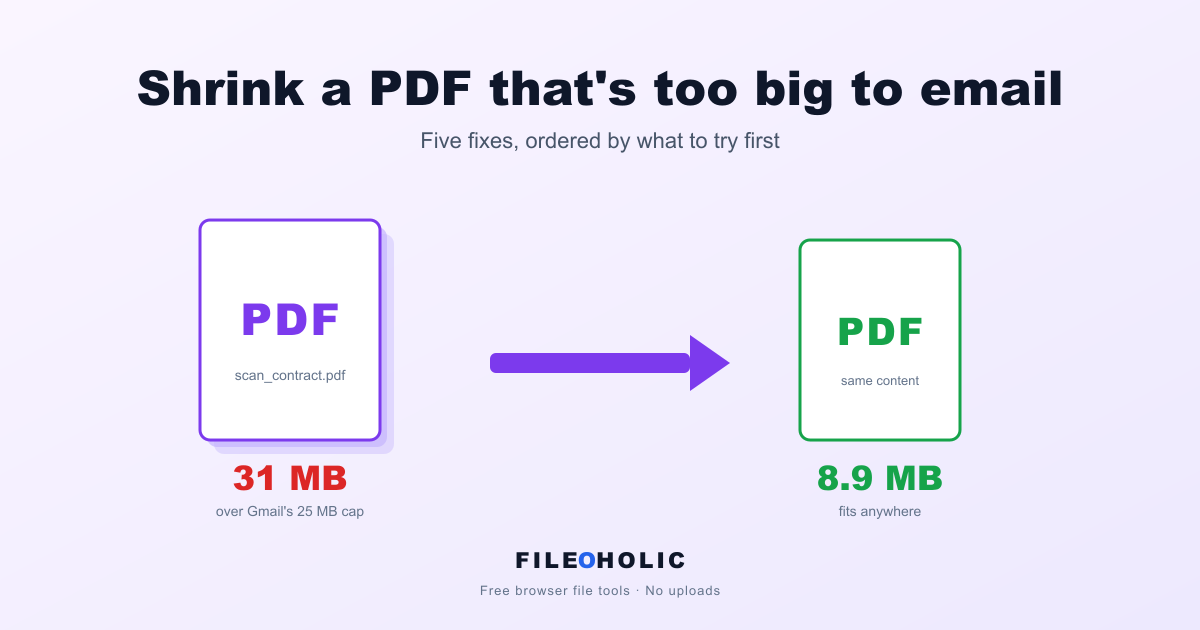
The send button stares at you. Gmail just rejected your email because the PDF attachment is "too large". Or your client's portal silently bounced the upload because their cap is 10 MB and your PDF is 14. Same root problem, several different cures depending on what's actually inside the file.
Why PDFs get fat in the first place
A PDF is a bundle. It can carry text (small), embedded fonts (medium), images (large), scanned page raster data (huge), forms, attachments, signatures, and a surprising amount of internal metadata. The biggest contributor by far is usually images. A 30-page contract that was scanned at 300 DPI can easily hit 50 MB. The same 30 pages as native text would be a few hundred KB.
Knowing what's bloating your specific PDF tells you which fix will actually help. A text-heavy PDF won't shrink much past a lossless pass. An image-heavy or scanned PDF can drop by 70-80% if you re-encode the embedded images.
Five fixes, ordered by what to try first
1. Lossless cleanup (always start here)
Tools like our browser PDF compressor strip metadata and re-encode the PDF's internal structure more efficiently. Fast, lossless, output-identical to the input. The savings are modest, typically 5 to 20 percent, but it costs you nothing and never makes the document look worse.
If 5 to 20 percent is enough to clear your email limit, stop here. You're done.
2. Re-encode the images inside the PDF
If your PDF has photos or scanned pages, the embedded images are almost always saved at higher quality than you need for email. Re-encoding them at JPG quality 80 instead of quality 95 can cut a PDF's total size in half with no visible difference at screen resolution.
Browser tools can't easily do this. Re-encoding images inside a PDF means unpacking the structure, finding each embedded image stream, recompressing it, and repacking. Adobe Acrobat handles it well. So do Smallpdf and ILovePDF (their PDF compressor pipelines do exactly this in their server-side tier). For one-off urgent sends, our affiliate links to those tools are on the compressor page.
3. Lower the scan resolution before scanning
If you control the scanner, this is the cleanest fix and it costs nothing. Most office scanners default to 300 DPI. That's print-quality. For email, 150 DPI is more than enough: text is fully readable, every part of the page is visible. Half the DPI is roughly a quarter the file size for typical documents.
For phone scanning apps (Adobe Scan, Microsoft Lens, Apple's built-in Notes scanner), drop the quality setting one notch and rescan.
4. Split the PDF into smaller parts
Sometimes the right answer isn't to shrink. It's to slice. A 50 MB document split into two 25 MB attachments fits in the same email. Or five 10 MB sections across five emails for stricter caps.
Use our PDF splitter with custom ranges like 1-15, 16-30 to halve a 30-page document. Runs in your browser, no upload.
5. Send a large PDF as a cloud link instead
If the file genuinely won't shrink and can't be split (signed contracts, legal exhibits that must arrive as one piece), upload it once to Google Drive, Dropbox, or OneDrive, and email the link. The recipient gets the same file, your inbox doesn't have to ferry the bytes.
This trades privacy for convenience. The file now lives on a server. For non-sensitive content, fine. For sensitive content, use a service that supports password-protected links and short expiration windows.
The myths to skip
Renaming .pdf to .zip. Doesn't make the file smaller. It's still the same bytes with a different label.
Compressing the PDF inside a ZIP. Almost never helps. PDFs are already internally compressed, so a ZIP wrapper saves a percent or two at best.
"Re-printing to PDF" using Microsoft Print to PDF. Usually doesn't help either. The print pipeline either copies the original images at the same resolution, or re-rasterizes the pages at higher quality and you end up with a bigger file.
The fastest workflow for most email-too-big PDFs
- Run the file through the browser PDF compressor (~30 seconds, free, no upload).
- If still too big, split it with the PDF splitter and send in chunks.
- If it's image-heavy and must arrive as one file, fall back to Adobe Acrobat or an online tool with image re-encoding.
Nine times out of ten, step 1 or step 2 solves it.
The honest opinion
Browser PDF compression has a real ceiling, and we're upfront about it. We can do the structural cleanup pass. We can't deeply re-encode the embedded images, because that work requires libraries (and memory budgets) that don't fit comfortably inside a browser tab today. So for image-heavy PDFs, Adobe Acrobat still wins. We'd rather you know that and use the right tool than have us oversell and ship a worse result.
For text-heavy PDFs, contracts, exported reports, fillable forms? Browser tools handle it. For scanned books, photo archives, or legal exhibits with embedded high-res images? Acrobat is faster and shrinks more.
Most PDFs that get rejected by Gmail are the first kind. Try the browser tool first. The 70% of users for whom it works save themselves a download and a paid app.