- formats
- images
JPG vs PNG vs WebP in 2026: which one should you actually use?
Three formats, three different jobs. A practical guide to picking the right image format for the web, for print, for sharing, and for archives, without the marketing fluff.
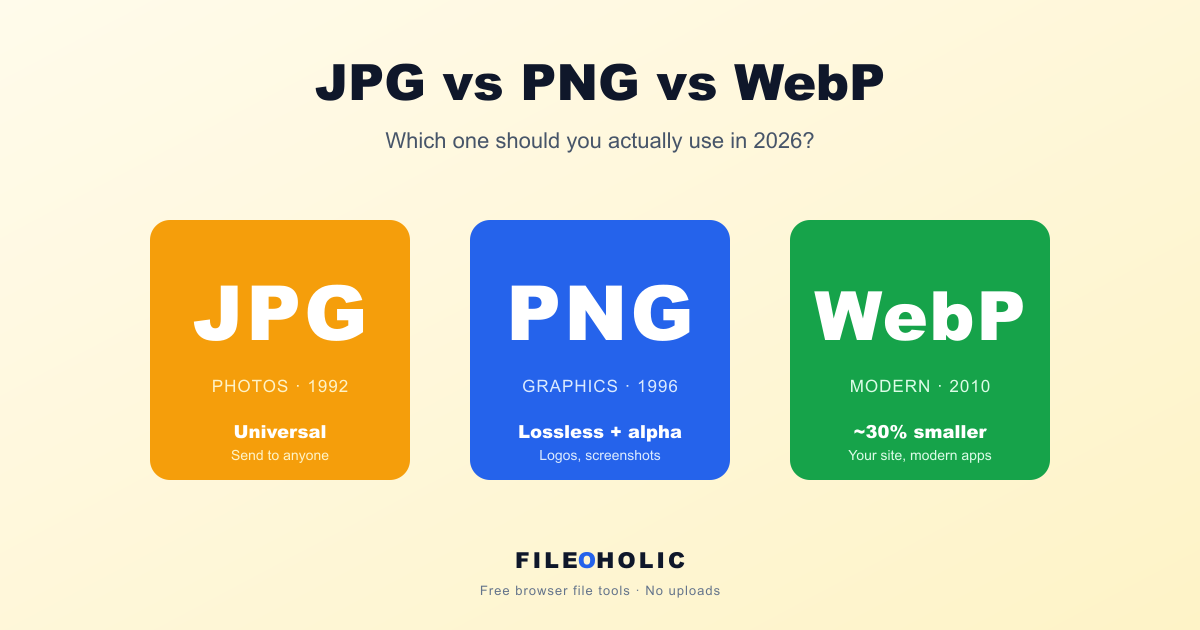
Pick the wrong image format and one of four things happens. Your image is too big. It's too blurry. It has a weird white background where transparency should be. Or it fails to open at all on the recipient's device. The good news: the rules are simple once you stop thinking of JPG, PNG, and WebP as "image formats" and start thinking of them as three different tools for three different jobs.
JPG: when universal compatibility wins
JPG (also spelled JPEG) turned 33 this year. Every machine on Earth can read it. Phone, fridge, decade-old printer, your grandmother's photo frame from 2008. The compression is lossy, meaning the file gets smaller by throwing away image data the human eye is unlikely to notice. At quality 80 you get a great balance between file size and visible quality.
JPG can't do transparency. Save a transparent PNG as a JPG and the transparent areas turn white, or whatever background color the converter picks for you. That makes JPG the wrong choice for logos, icons, or any graphic with a clean cutout.
Use JPG for: photos you're emailing to anyone, scans, anything uploaded to a government portal or job application form, anywhere you don't know what software the recipient is running.
PNG: when quality matters more than file size
PNG is lossless. Save a PNG five times in a row and you get the same file each time, byte for byte. No quality loss, ever. The trade-off is file size: a PNG of a photo can be ten times the size of the same photo as JPG.
PNG supports transparency, which JPG doesn't. That makes it the standard choice for logos, icons, screenshots, and any graphic with a transparent background.
Use PNG for: screenshots, logos, icons, line art, comics, any image where JPG's compression blocking would be visible and unacceptable, archival masters you might re-edit later.
WebP: when you control the destination
Google released WebP in 2010 as a modern alternative to both JPG and PNG. It does both: lossy and lossless, in one format. It supports transparency. And it produces files about 25 to 35 percent smaller than JPG at the same visible quality.
The catch: support is "modern browsers and modern apps". Every version of Chrome, Edge, Firefox, and Safari released in the last five years renders WebP. Most modern apps handle it. But some old Windows photo viewers, some corporate email scrubbers, and some legacy enterprise tools still choke on it.
Use WebP for: images on websites you control, blog post hero images, app assets, sharing with technically aware people, anywhere you can confirm WebP works on the destination.
What about AVIF?
AVIF is the next-generation format. The Alliance for Open Media standardized it in 2019. Even smaller files than WebP at the same quality, broad modern browser support (Chrome, Edge, Firefox, Safari 16+), and royalty-free.
Tooling is still catching up. Older Photoshop installs can't open AVIF without a plugin. Many CMSs don't generate AVIF variants yet. For 2026, WebP is still the safer modern choice. Worth watching AVIF, not yet worth defaulting to it for general use.
JPG vs PNG: which should you use?
This is the comparison most people actually need, so here it is plainly. Use JPG (also written JPEG) for photographs and anything you're sharing widely — it's smaller and opens everywhere. Use PNG when you need a transparent background, or for screenshots, logos, and line art where you can't afford the fuzzy edges that JPG's lossy compression leaves around sharp lines and text. The short version: JPG for photos, PNG for graphics with hard edges or transparency. The difference between JPG and PNG isn't quality in the abstract — it's which kind of image you're saving.
The 30-second decision tree
- Photo, sharing with someone you don't know? JPG.
- Logo, icon, screenshot, anything with transparency? PNG.
- Image on a website you control, going to modern browsers? WebP.
- Photo for archive, edit later? PNG if quality matters most, JPG quality 95 if size matters too.
Side-by-side at the same photo
| JPG | PNG | WebP | |
|---|---|---|---|
| Released | 1992 | 1996 | 2010 |
| Lossy? | yes | no | both modes |
| Transparency | no | yes | yes |
| Animation | no | no (use APNG) | yes |
| Universal support | yes | yes | modern only |
| Typical 12 MP photo size | ~3 MB | ~20 MB | ~2 MB |
The honest opinion
WebP should have won this argument five years ago. It already did, technically. Every browser supports it, every modern OS handles it, and it's smaller than JPG at the same quality. If you're publishing images on a website in 2026 and not at least serving WebP as a fallback, you're shipping bigger pages than you need to.
But JPG isn't dying. Email, web forms, and "send this photo to a stranger's device" use cases will keep JPG alive for another decade easily. The right answer is to use the right format for the job, not to pick a side.
Converting between them
Use our image format converter to switch between JPG, PNG, and WebP in your browser. No upload. The tool warns you when transparency would be lost (PNG to JPG) so you don't accidentally end up with a white box where the alpha channel used to be.
One last rule worth remembering
Don't save lossy formats over and over. Every time you save a JPG or WebP, a little quality is lost. Save the same JPG ten times and you can watch the artifacts pile up: blocky edges, weird color halos. If you're going to edit a photo across multiple sessions, save the working file as PNG and only export to JPG or WebP for the final share.
Pick the format for the job, not the format with the strongest opinion online. JPG, PNG, and WebP each solve a problem the other two don't. Use them that way.