- aae
- iphone
- windows
What Is an AAE File? Why iPhone Photos Bring Them to Windows
You copied photos from your iPhone and got mysterious .aae files — and your edits vanished. Here's what an AAE file actually is, why you can't convert one to JPG, and how to get the edited photo onto Windows.
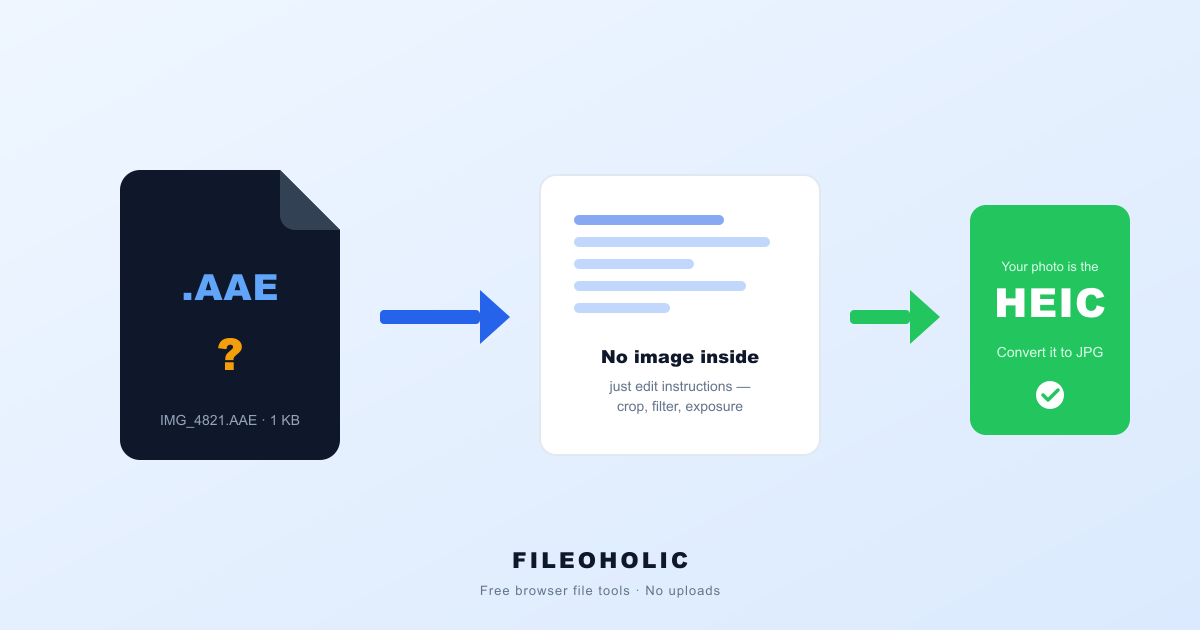
You plug your iPhone into a Windows PC, copy the camera roll across, and the folder looks wrong. Next to every photo sits a second file with the same name and an extension you've never seen: IMG_4821.AAE. Double-click it and Windows has no idea what to do. Worse, the photo you carefully cropped last week has shown up uncropped.
Short answer: an AAE file is a tiny sidecar file Apple's Photos app writes to record the edits you made to a photo — the crop, the filter, the exposure tweak. It contains no image data at all, only instructions, which is why you can't open it or convert it to JPG. It also explains the missing edits: Windows received your original photo, and the edit list it can't read.
What an AAE file actually is
Apple has never formally documented the acronym; it's most often expanded as "Apple Aperture Edits", a holdover from Apple's long-discontinued Aperture photo app. The name matters far less than the job it does.
When you edit a photo on an iPhone — crop it, straighten it, apply a filter, brighten it — the Photos app does something deliberate: it doesn't change your original photo. The untouched image stays exactly as the camera captured it, and your changes are written to a separate little file as a list of instructions. That list is the AAE.
Open one in Notepad and you'll find a small plist/XML document, usually about 1 KB, full of adjustment entries and numbers. No thumbnail, no preview, no pixels. It reads roughly as: crop to these coordinates, raise exposure by this much, apply this filter at this strength.
This is called non-destructive editing, and it's genuinely a good design. It's why you can hit "Revert" on an iPhone photo months later and get the original back perfectly. The catch is that the arrangement only works inside Apple's ecosystem, where an app knows how to read the instructions and re-apply them on the fly.
Why your edits vanished on Windows
This is the part that actually upsets people, and it follows directly from the above. Copying photos over USB hands Windows two things: the original, unedited image, and an AAE file describing edits Windows has no ability to apply.
So the crop is gone. The filter is gone. The straightened horizon is crooked again. Nothing is corrupted and nothing is lost — the edited version simply never existed as a standalone file. It only ever existed as "original + instructions", assembled live by the Photos app every time you looked at it.
The AAE sitting in your folder is the receipt. It's proof the edits were made, and proof they stayed behind.
Why you can't convert an AAE to JPG
Search for AAE and you'll find sites advertising an "AAE to JPG converter". Those pages are selling you something that cannot exist. An AAE holds no image data whatsoever — there is nothing inside to turn into a picture. Converting one to JPG is like trying to develop a photograph from the recipe rather than the negative.
How to actually get the edited photo onto Windows
You need the iPhone to bake the edits into a real image file before it leaves the phone. Any of these do that:
- Share it from the phone. AirDrop, email, or message the photo to yourself. When iOS shares a photo, it merges the edits into the file it sends — so what lands is a single, properly edited image. Easiest fix by a mile.
- Change the USB transfer setting. On the iPhone: Settings → Photos → Transfer to Mac or PC → Automatic. This converts photos into compatible files during import rather than dumping originals and sidecars.
- Use iCloud.com. Sign in on the PC, open Photos, and download the picture from there — iCloud serves the edited version.
- Duplicate before transferring. In Photos on the iPhone, duplicate the edited photo. The duplicate is created with the edits already applied.
Whichever route you take, the photo arriving on Windows will very often be a .heic file — and Windows frequently can't open those either. That's a separate, easily solved problem: our HEIC to JPG converter handles it in the browser, and we've written up the full story in why HEIC files won't open on Windows.
Should you just delete the AAE files?
On a Windows PC: yes, delete them freely. They do nothing there. They can't be opened, can't be used, and deleting one has no effect on the photo beside it. Sorting the folder by file type and removing every .aae in one go is a perfectly reasonable cleanup.
The one caveat is for the copy still on your iPhone or in Apple Photos. There, the AAE is what makes the edit reversible and re-applicable — so leave those alone. Deleting the Windows copies has no bearing on the phone.
AAE vs HEIC, side by side
| .aae | .heic | |
|---|---|---|
| Contains a picture | no | yes |
| Typical size | ~1 KB | 1–5 MB |
| What it holds | edit instructions | the actual photo |
| Convertible to JPG | no — nothing to convert | yes |
| Safe to delete on Windows | yes | no — it's your photo |
| What to do with it | ignore or delete | convert to JPG |
FAQ
Can I delete AAE files?
On Windows, yes. An AAE file only tells Apple's Photos app how to re-apply an edit — it holds no image data, so deleting it never touches or damages the photo itself. The only thing you lose is the ability to restore that edit inside Apple Photos later, which Windows can't do anyway.
Can I convert an AAE file to JPG?
No, and any site offering an "AAE to JPG converter" is misleading you. An AAE contains zero pixels — it is a roughly 1 KB list of instructions like "crop here, raise exposure, apply this filter". There is no picture inside to convert. To get the edited photo as a JPG you have to re-export it from the iPhone, which bakes the edits into a real image file.
Why did my photo edits disappear when I copied photos to Windows?
Because the edit never lived in the photo. Apple edits non-destructively: it keeps the untouched original and stores your crop, filter, and exposure changes in the separate AAE sidecar. Copying over USB hands Windows the original plus an AAE it can't read — so you see the unedited version. The AAE sitting there is the evidence your edits stayed behind.
Why do I have a HEIC and an AAE file with the same name?
That pair is one photo. IMG_1234.HEIC is the actual image, and IMG_1234.AAE is the edit list attached to it. The HEIC is the file you care about — and the one Windows often won't open either, since it needs a decoder Windows doesn't ship by default.
Can I open an AAE file to see what's in it?
You can open it in Notepad, because it's a small plist/XML text file. But it is only adjustment data — tag names and numbers describing an edit. There's no preview or picture to see, and nothing outside Apple's Photos app can act on those instructions.
Do AAE files take up much space?
Almost none. They're typically around 1 KB each — a rounding error next to a multi-megabyte photo. They're visual clutter in a folder rather than a storage problem.
The short workflow
- An
.aaeis an edit list, not an image — there's no picture inside it. - Missing crops and filters? The edits stayed on the phone. Re-share the photo from the iPhone to bake them in.
- Ignore any "AAE to JPG converter" — the promise is impossible.
- On Windows, the AAE files are safe to delete.
- The photo itself is usually a
.heic— convert HEIC to JPG free in your browser, nothing uploaded.
AAE files look like a problem because they arrive uninvited and refuse to open. They're really just Apple showing its working — a note to itself about an edit, stranded on an operating system that was never meant to read it. Delete them, re-share the photo you actually wanted, and the mystery is over.