- heic
- iphone
- windows
HEIC Not Opening on Windows 10 or 11? Why, and the Free Fix (No Upload)
HEIC not opening on Windows 10 or 11? Windows has no built-in HEIC decoder. Here's why Microsoft Photos can't open an iPhone photo, the free extension that fixes viewing, and how to convert HEIC to JPG without uploading anything.
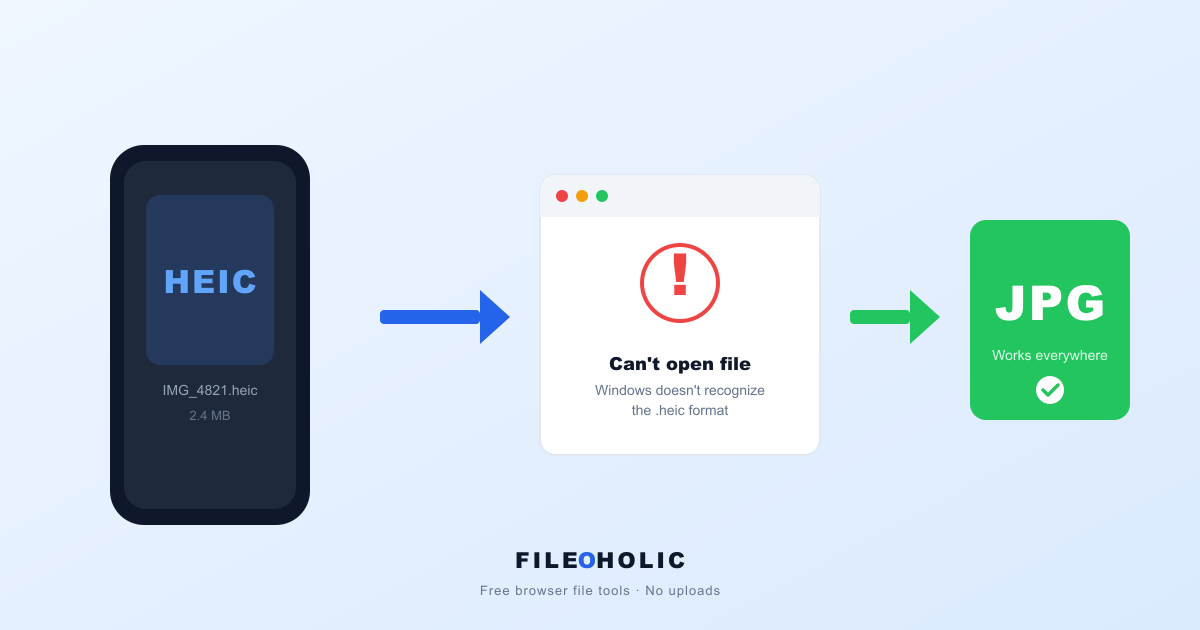
Every other week, someone forwards us the same screenshot. iPhone in one hand, Windows laptop in the other, and a file called IMG_4821.heic that the recipient swears their PC "can't open". Email it to yourself, drag it to the desktop, double-click. Same result. Windows shrugs.
It's not your PC's fault. It's not the photo's fault either. It's a format-versus-compatibility problem that's been quietly broken for almost a decade.
Short answer: HEIC files won't open on Windows because Windows has no built-in decoder for Apple's HEIC format. There are two fixes — install the free HEIF Image Extensions from the Microsoft Store to view them, or convert the HEIC to JPG. Only the JPG route also works for email attachments and upload forms, which is why most people just convert.
What HEIC actually is
HEIC stands for High Efficiency Image Container. Apple flipped iPhones over to it as the default photo format in iOS 11, which shipped in September 2017. That's roughly nine years of every photo your iPhone takes being saved as .heic unless you've gone digging in Settings.
The reason Apple made the switch: HEIC files are around half the size of the equivalent JPG, at the same visible quality. That's a big deal for a 256 GB phone. The reason it became a problem: Windows wasn't ready for it. Neither were most government portals, school upload forms, banking sites, photo printers, older email clients, or anyone running Windows 10 from before late 2018.
HEIC isn't bad. The rest of the world just hasn't caught up. And honestly, at this point, they probably never will. JPG is too entrenched.
Two ways to fix this
You can either stop the problem at the source, or convert the photos you already have. Most people end up doing both.
1. Tell your iPhone to save JPG instead
If you regularly send photos to Windows users or upload to web forms, stop fighting and turn HEIC off:
Settings → Camera → Formats → Most Compatible.
Every new photo from then on saves as JPG. Photos you've already taken stay as HEIC, but you stop the bleeding.
2. Convert the HEIC photos you already have
There's a long menu of options here, and most of them involve uploading your photos to some random server first. We'd skip those. Photos sit in your camera roll for a reason. They're often more personal than email.
Our HEIC to JPG converter runs the decode entirely in your browser tab using a WebAssembly build of libheif. Drop the file, click convert, download the JPG. Nothing leaves your device. If you don't believe us, open DevTools (F12) → Network tab and watch what happens when you drop a file. You'll see the page load, then silence. No request carrying your photo, ever.
Why the first conversion is a bit slow
The libheif WebAssembly module is about 700 KB. Your browser downloads it the first time you use the tool, then caches it. After that, conversions feel instant. Compare that to the typical "online converter" site that loads 4-6 MB of ad scripts before you can even drop a file.
Should you keep the original HEIC?
Yes, where you can. HEIC is technically the better format. Half the storage, support for transparency, support for live photos and image sequences. The future is HEIC and AVIF, not JPG.
But for the next decade or so, JPG is the format you can send anywhere without thinking. So the practical move: keep both versions when it matters. iPhone's "Most Compatible" mode handles this automatically for new shots; for old ones, just save the JPG alongside without deleting the HEIC.
HEIC vs JPG, side by side
| HEIC | JPG | |
|---|---|---|
| Typical file size | ~50% smaller | baseline |
| Quality at same size | noticeably better | baseline |
| Transparency support | yes | no |
| Live photo / sequence | yes | no |
| Opens on Windows 10 (pre-2018) | no | yes |
| Opens on Android 9 and below | no | yes |
| Accepted by most web forms | often no | yes |
How to open HEIC files on Windows without converting
If you'd rather view HEIC on Windows than convert it, Microsoft sells two extensions through the Windows Store that together teach Windows 10 and Windows 11 to handle HEIC. The HEIF Image Extensions are free. The companion HEVC Video Extensions cost about $0.99 — only needed if you also want HEIC live-photo motion to play.
With both installed, Windows Explorer previews HEIC thumbnails, the Photos app opens them, and most apps that respect Windows' image codecs will too. It's worth setting up if you get HEIC files often. For one-off conversions, the browser tool is faster.
Third-party option: CopyTrans HEIC for Windows is a popular free alternative that adds HEIC support to Windows Explorer and even Microsoft Office. We don't earn anything from that link. It just genuinely works.
HEIC files not opening in Windows 10
Windows 10 shipped without any HEIC support at all, and only gained it part-way through its life via the Store extensions. So on a Windows 10 machine — especially one built or imaged before late 2018 — double-clicking a .heic typically gets you "Windows Photo Viewer can't open this picture", an "unsupported file format" dialog, or simply a blank icon where the thumbnail should be.
Install the free HEIF Image Extensions from the Microsoft Store and previews start working. Two Windows 10 specific snags worth knowing:
- The Store link can fail on older builds. If the extension page won't load or install, your Windows 10 is likely behind on updates — the extensions need a reasonably current build. Run Windows Update first, then retry.
- Windows Photo Viewer never learns HEIC. The legacy viewer many people still set as default ignores the new codecs entirely. Open the file with the modern Photos app instead, or convert it.
If you're on a work machine where the Microsoft Store is blocked by policy — common in offices and schools — installing extensions isn't an option at all. Converting to JPG in the browser sidesteps that completely, since it needs no install and no admin rights.
HEIC files not opening in Windows 11
Windows 11 looks like it should handle HEIC — it ships with partial HEIF plumbing — but in practice the same wall is there. Out of the box you'll often see a black or blank thumbnail in Explorer, or the Photos app throws an "unsupported format" error. The fix is identical to Windows 10: install the free HEIF Image Extensions from the Microsoft Store, and previews start working immediately.
If a HEIC still won't open after that, it's almost never the file. It's that the app you're using ignores the system codec, or the file got truncated mid-transfer (AirDrop-to-cloud-to-Windows is a common culprit). Re-copy the original from the iPhone, or just convert it to JPG — a JPG opens in every Windows app ever made, no extension required.
Are HEIC files safe to open?
Yes. A .heic file holds photo data and metadata, not executable code, so there's no macro or script inside it waiting to run when you double-click. A HEIC that won't open on Windows is a missing-codec problem on your end, not malware. The genuinely worthwhile safety question is what happens to the photo after that, since most online converters upload it to a server: we go through the whole picture in are HEIC files safe?
The honest opinion
Apple made the right technical call on HEIC. They also made the wrong product call by switching every iPhone to it by default in 2017, before the ecosystem was anywhere close to ready. We're still cleaning up the mess almost a decade later. If you've ever wondered why "convert HEIC to JPG" is one of the most-searched file-format queries on the internet, that's why.
FAQ
Why does my HEIC file open as a black or blank thumbnail on Windows?
That is Windows telling you it has no decoder for the format. Without the HEIF Image Extensions installed, Explorer can't generate a HEIC preview, so it falls back to a blank or black thumbnail. Install the free extensions to get previews, or convert the file to JPG and the thumbnail appears instantly.
Can Windows 11 open HEIC files out of the box?
Not reliably. Windows 11 ships with only partial HEIF support — for dependable HEIC viewing you still need the HEIF Image Extensions from the Microsoft Store. And even with them installed, upload forms that check the file extension will still reject .heic, so converting to JPG remains the fix that works everywhere.
Are HEIC files safe to open, or could one be a virus?
A .heic file is just an image container — it can't execute code, so opening or converting one cannot infect your PC. The far more common problem is the opposite: a HEIC that won't open at all. That is a missing-codec issue, not malware.
I installed the Microsoft extensions but my HEIC still won't upload — why?
Viewing and uploading are two different problems. The HEIF extensions teach Windows to display HEIC, but web upload forms validate the file extension, not your operating system's codecs — and most still refuse .heic. For any upload, convert to JPG first.
Is HEIC compatible with Windows?
Partly, and only after setup. Windows 10 has no HEIC support until you install the HEIF Image Extensions from the Microsoft Store; Windows 11 ships with partial support that still often shows blank thumbnails until those extensions are added. Even then, compatibility stops at viewing — upload forms, older apps, and many email clients continue to reject .heic outright. Converting to JPG is the only route that works everywhere.
Why can't I open a HEIC file on Windows 10 specifically?
Windows 10 launched with no HEIC decoder and only gained one later through Store extensions, so an older or un-updated Windows 10 install has nothing to read the format with. Install the free HEIF Image Extensions and open the file with the modern Photos app — the legacy Windows Photo Viewer ignores those codecs and will keep failing. If your workplace blocks the Microsoft Store, convert the file to JPG in the browser instead; that needs no install or admin rights.
My HEIC won't open even after installing the extensions — what now?
Two usual causes. Either the app you're opening it in ignores the Windows codecs (legacy Photo Viewer is the common offender — try the Photos app), or the file was truncated in transfer, which happens with AirDrop-to-cloud-to-PC routes. Re-copy the original straight from the iPhone. If it still refuses, converting to JPG will tell you quickly whether the file itself is intact.
More on HEIC
For the full walkthrough (Android, batch conversion, iPhone setting changes, and the OS-level fixes on Mac and Windows), see our complete HEIC guide.
Seeing small .aae files next to your photos after the import, or noticed your crops and filters went missing? That's a related quirk of the same transfer — we explain it in what an AAE file is.
The five-second workflow
- HEIC is iPhone's default photo format since 2017. Half the size of JPG at the same visible quality.
- Windows and many web forms still don't accept it cleanly.
- Easiest long-term fix: Settings → Camera → Formats → Most Compatible on your iPhone.
- For files you already have: convert HEIC to JPG in your browser, no upload required.
HEIC is the better format. JPG is the more compatible one. Both are going to be true for the next decade, so build the habit of converting before sharing. It's a five-second tax for an inbox that just works.